DOCDING GUIDE
Getting the most from your vault.
Practical, step-by-step answers for setting up a household vault, keeping dates in view and sharing safely.
01 · Getting started
Set up your household vault
A few minutes of setup makes every later search faster.
Create your account and write down your recovery key before anything else. Keep it outside DocDing.
Add the people your documents belong to: yourself, a partner, children, a parent you help.
Add companies or other entities if you keep papers for them, such as a small business or a property.
Start with the documents you would need in a hurry: passports, ID cards, insurance policies.
Good to knowPeople and entities you file documents under do not need their own account.
02 · Adding documents
Add files, several files, or scanned pages
Choose the way that matches the paper in front of you.
Add one file to bring in a single PDF or photo, or choose No file to track a date before the paper arrives and add the file later.
Choose several files at once to import a folder of documents in one go. Each one is reviewed before it is saved.
Scan pages with your camera to turn a paper document of several pages into one PDF.
Choose the person or entity and the category, then give the document a title you will search for later.
Good to knowReplacing a file later keeps the previous version with the document.
03 · Dates and reminders
Track expiry, renewal and review dates
Dates are what turn a folder of papers into something useful.
When you add a document, enter its important date, such as an expiry date. Text recognition (Beta, still under development) can find dates for you: it is off until you turn it on in the app on your phone, under Settings, then Preferences, and it works only on phones that support it.
Nothing is set silently. Confirm a date it finds, correct it, or leave it out.
Add the date kinds that matter: expiry, renewal due, review due, coverage start and coverage end.
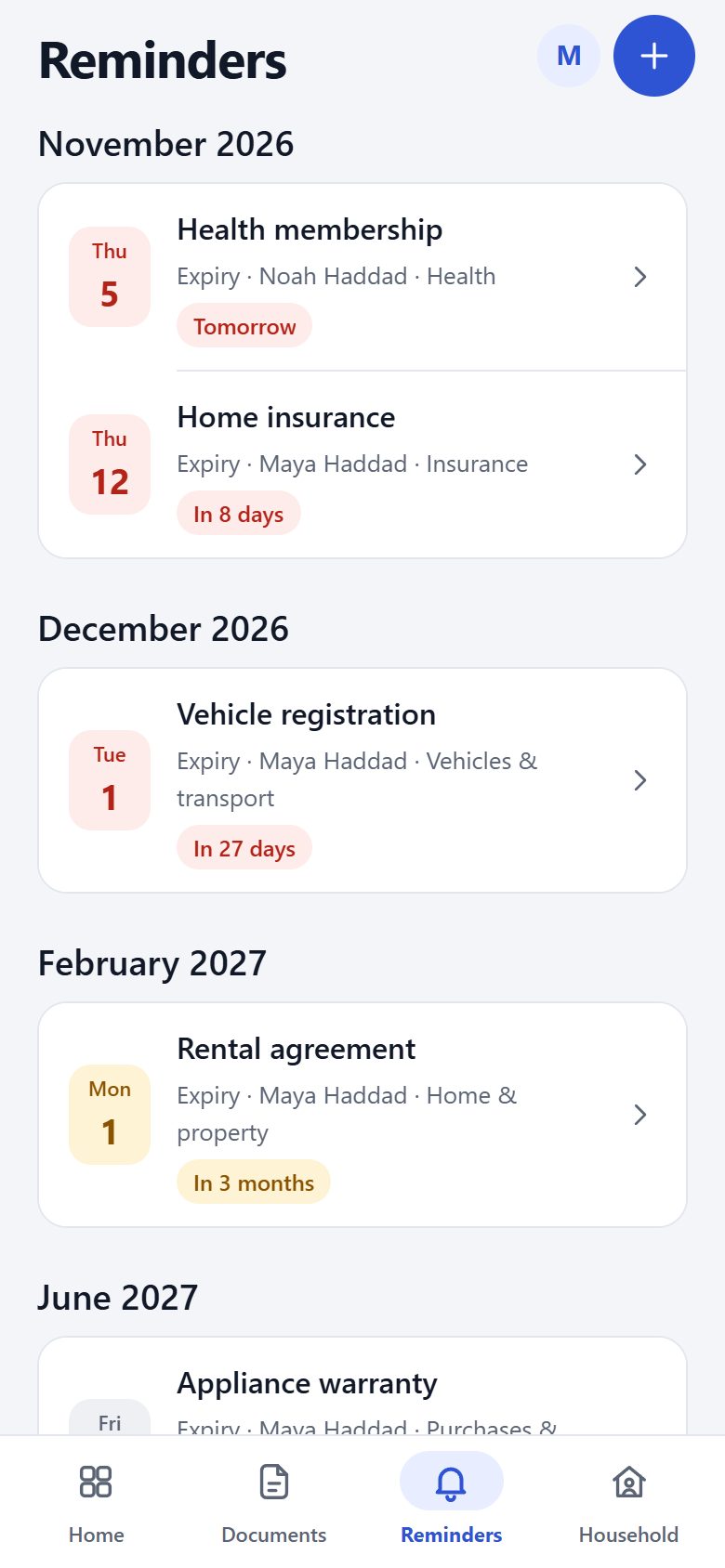
Follow the countdown on Home and Reminders, and let reminders tell you ahead of time.
Good to knowReviewing a date does not renew the document or change the confirmed date.
04 · People & entities
Organize by person, company or entity
Each document belongs to someone, and DocDing keeps it that way.
Open Documents and choose People to see everyone and everything you file documents under, with a count for each.
Open a person to see only their documents.
Use categories alongside people: Identity & travel, Family & civil records, Health, Insurance, Home & property, Vehicles & transport, Work & education, Financial & legal, Purchases & warranties, Memberships & other.
Mark favorites for quick access, and archive what you no longer need every day.
Good to knowSearch looks across titles, people and categories at the same time.
06 · AI connections
Ask an AI assistant about your deadlines
AI connections are off by default. If you turn them on, a compatible assistant can answer questions about your deadlines through MCP. It never sees your documents.
Open Settings, then Privacy, then AI assistants. Read the consent and confirm every statement to turn connections on.
Choose which categories assistants can see and how many days count as due soon. Health is always restricted.
Add DocDing to an assistant that supports MCP and ask, for example, what is overdue or due this month.
Ask it to remind you about something, such as a renewal. The reminder it proposes waits in the Review inbox: approve, edit or decline it there.
Check AI activity to see every session and what was read. You also get a notification when an assistant reads your deadlines.
Good to knowThe assistant sees categories, date types, due dates and reminders, never document names, files or people. Open DocDing to see which document a deadline belongs to.
07 · Security & recovery
Keep your vault, and your way back in
DocDing is designed so documents are encrypted on your device and staff cannot read your vault.
Save your recovery key when you create your account. Print it or store it in a password manager.
Keep the recovery key away from the devices you use for DocDing, so losing one does not lose both.
Never share the recovery key with anyone, including people claiming to be DocDing support.
If you ever lose access to your devices, the recovery key is how you get back into your vault.
Good to knowBecause staff cannot open your vault, they cannot recover a lost recovery key for you.
08 · Plans & storage
Understand plans and storage
Two plans differ in how much storage the household shares.
Essential includes 1 GB of storage shared by every member of the subscription.
Pro includes 5 GB of shared storage.
Only original files count, including previous versions you keep and documents in the trash.
Deleted documents stay in the trash for 30 days before they are removed for good.
Good to knowPrices are shown in your app store before you subscribe.
DOCDING GUIDE
Still have a question?
Write to us and we will help you find your way.